Features
A tour of what Ribbon does beyond the basic ledger. Everything here is in 0.3.0-dev.
The basics
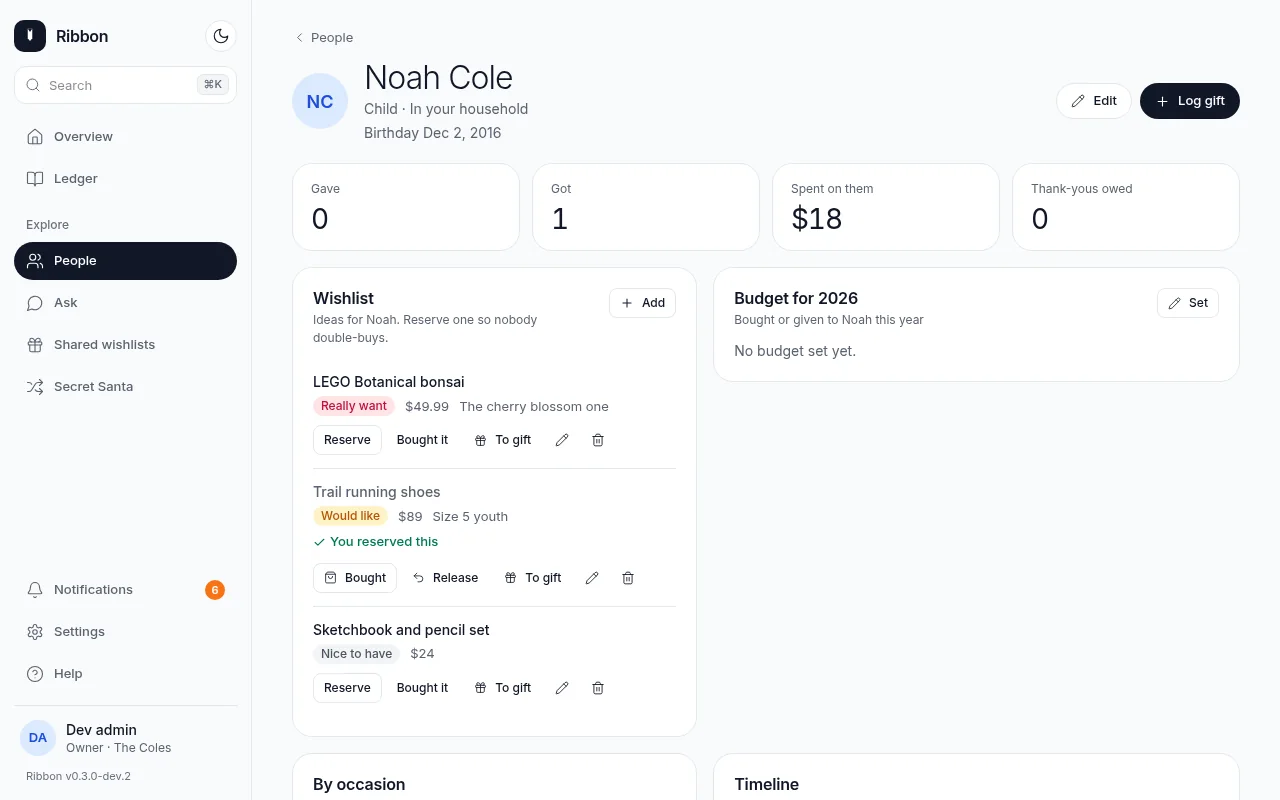
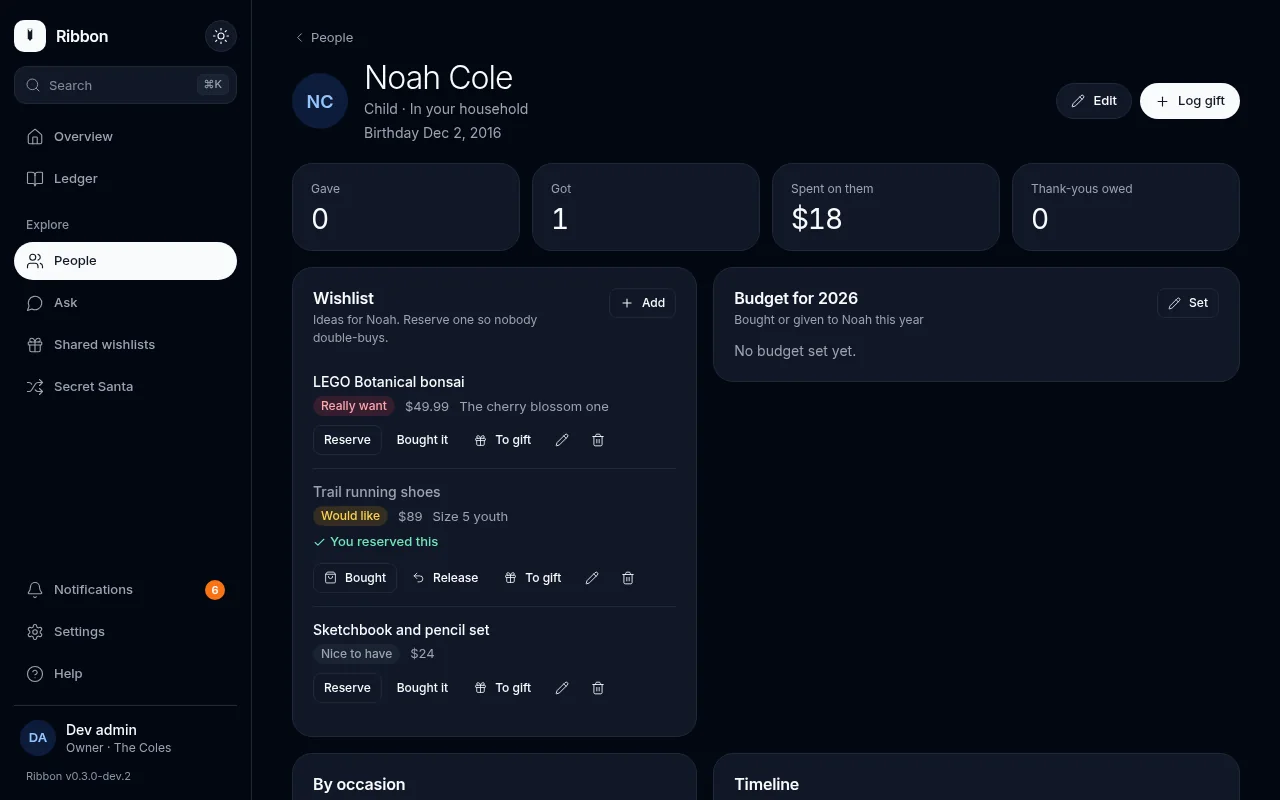
The Overview shows gifts this year (received, given, spent, thank-yous sent) against last year, upcoming dates, where the money went by occasion or person, budgets, and a Needs you list of thank-yous to write and gifts still to buy. The Ledger lists every gift, People lists everyone you give to or receive from (with what you gave and got), and a global search (Ctrl/⌘ + K) finds anything. Ribbon is built for the phone first and follows your light or dark theme.
Ask
If the server has an XAI_API_KEY, the Ask page answers plain-language questions about your ledger ("how much did we spend on birthdays?"). A question sends a trimmed copy of your gift list to xAI, so leave the key unset if you do not want that. Each login gets 30 questions an hour.
Wishlists
Every person has a wishlist (item, link, price, note). Anyone in the household can reserve or mark an item bought. Surprise-safe: the person whose list it is never sees reserved or purchased marks on their own list. The server strips them from the response, so it holds even if someone opens the API directly. "Convert to gift" turns an item into a planned gift and reserves it.
Budgets
Set a yearly budget per person or per occasion. Overview and the person page show spent against budget.
Upcoming dates and recurring occasions
People have birthdays and anniversaries; occasions can repeat yearly. The Overview "Upcoming" card lists what is coming, with the days left.
Calendar feed (ICS)
Settings → Account → Calendar creates a secret link (/api/calendar/<token>.ics) to subscribe to from Google, Apple or Outlook calendar. It carries upcoming dates with a reminder (default 14 days). Regenerating the link revokes the old one. Treat the link like a password.
Backups
The database is snapshotted on a schedule (BACKUP_CRON, default daily 03:00; off disables) into <DATA_DIR>/backups, keeping the newest BACKUP_KEEP (14). Settings → Data (instance owner only) lists them, takes one now, downloads one, and restores one. You can also upload a backup file to restore. A restore takes a safety copy first; logins that are not in the restored file stop working.
CSV import and export
Settings → Data exports gifts or people as CSV, offers a template, and imports with a column-mapping step and a preview of what will be created or skipped before anything is written.
Sharing between households
An instance can hold several households, each with its own private ledger. Owners invite another household with a short single-use code that expires (Settings → Sharing). Linked households choose which of their people to share; the other side sees only those people, their wishlists and the marks that are safe for that viewer. Gifts, budgets and everything else stay private. Unlinking removes access immediately. Visibility is enforced on the server and covered by tests (households.test.ts, wishlist.test.ts).
Secret Santa
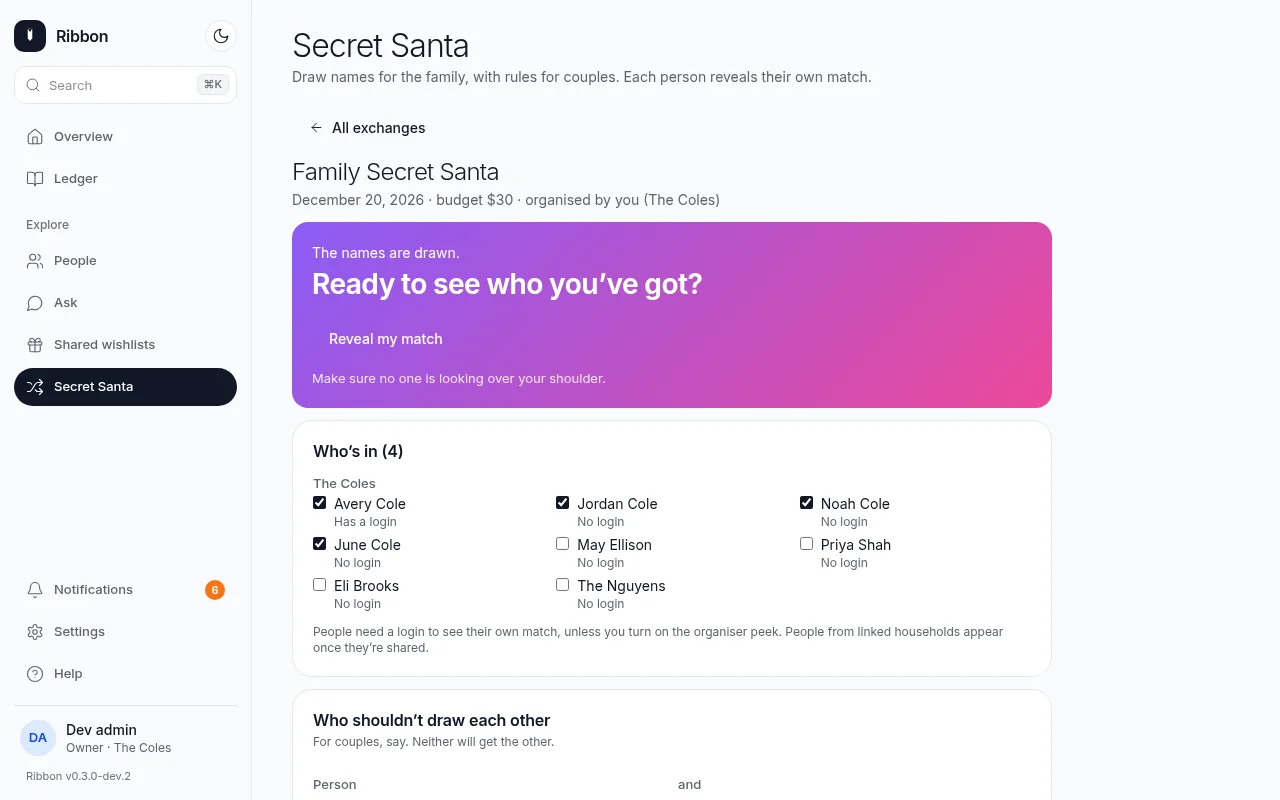
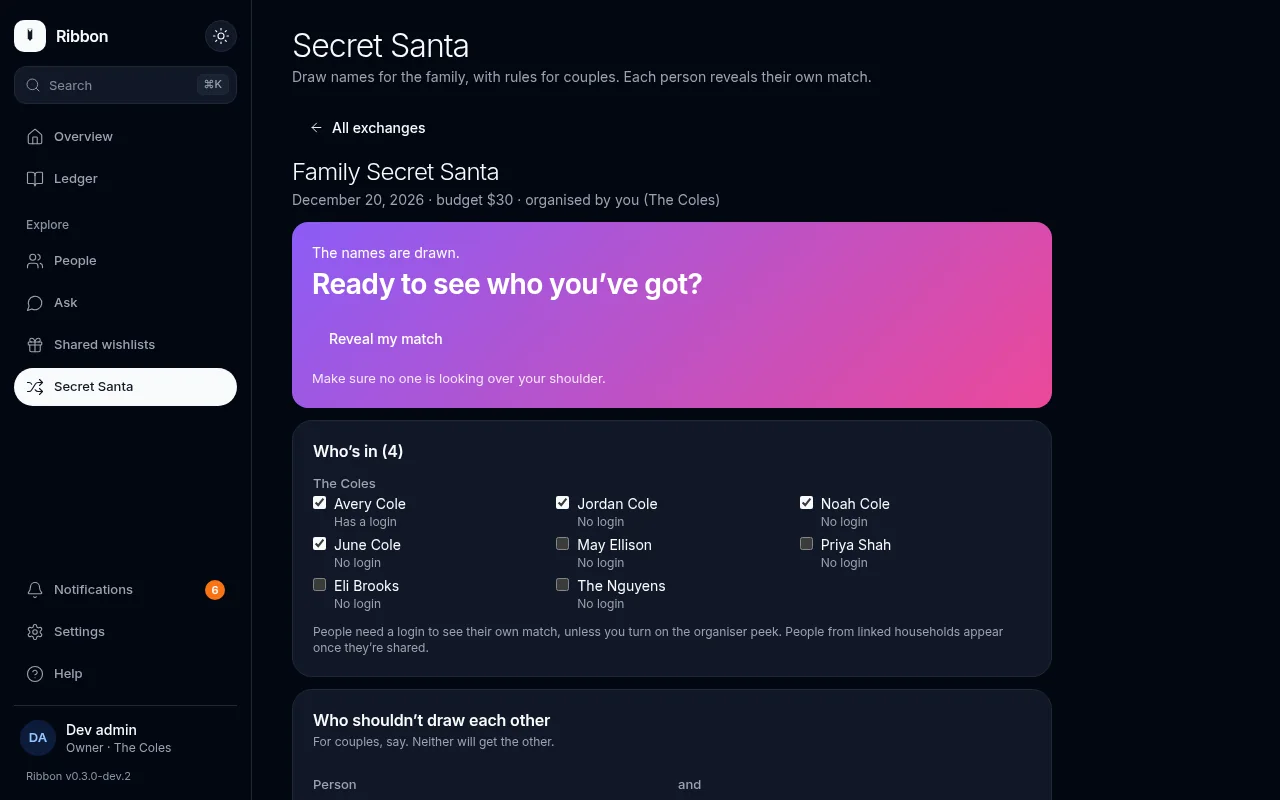
Create an exchange across your household or linked households: pick participants, add exclusions (couples, last year's match), check the draw is possible, then draw. Everyone sees only who they give to. The organiser sees the full draw only if they turned on "organiser peek" when setting it up.
Sign-in options
- Single sign-on (OpenID Connect, PKCE). Set
OIDC_ISSUER,OIDC_CLIENT_IDandOIDC_CLIENT_SECRET. Register<PUBLIC_URL>/api/auth/oidc/callbackas the redirect URI. People link SSO to their existing login under Settings → Account (or setOIDC_AUTO_LINK_BY_EMAIL=trueto match by verified email).DISABLE_PASSWORD_LOGIN=truehides the password form once SSO works. The issuer must behttps://unless it is on a private address (orOIDC_ALLOW_HTTP_ISSUER=true). - Passkeys. Add one under Settings → Account, then sign in with a fingerprint, face or security key. Passkeys need HTTPS (or
localhost).
Install as an app (PWA)
Over HTTPS Ribbon offers "install" on phones and desktops, has an icon set and an offline page. On plain HTTP it is a normal web page.
Guided tour
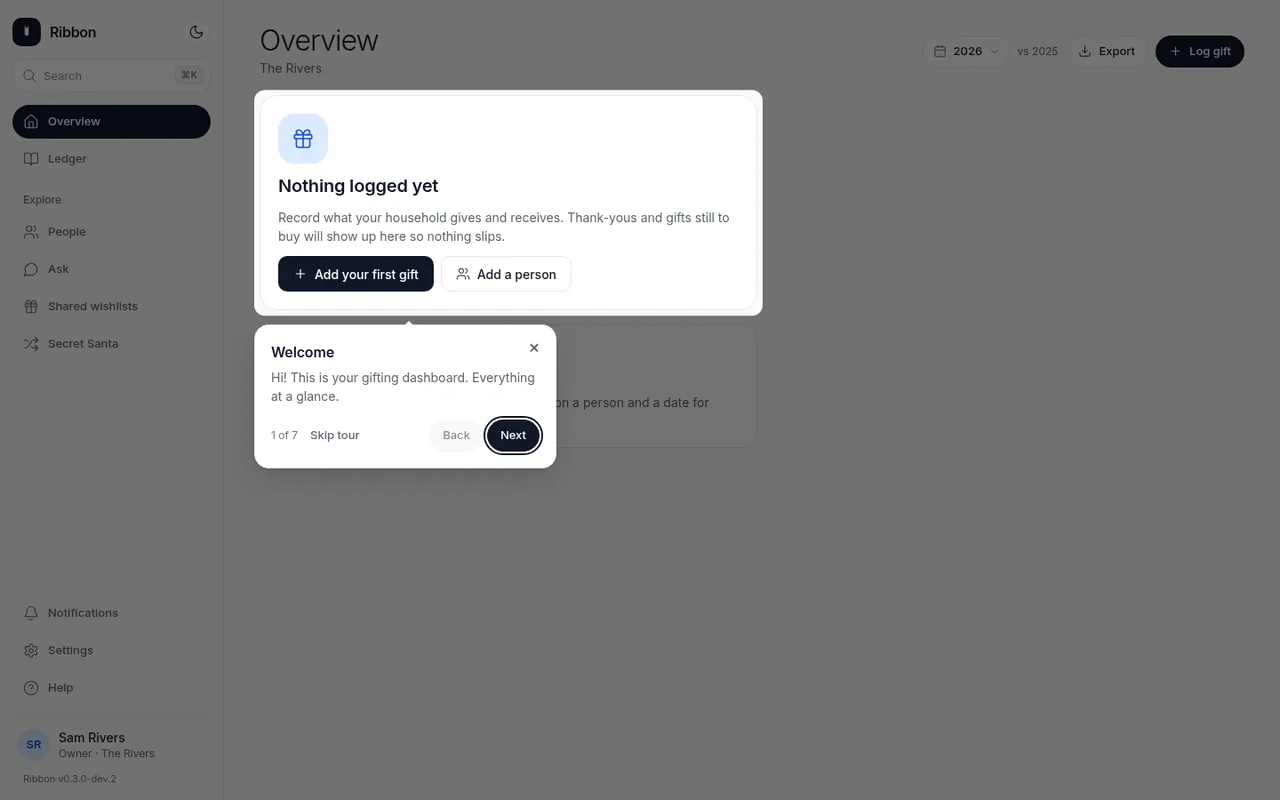
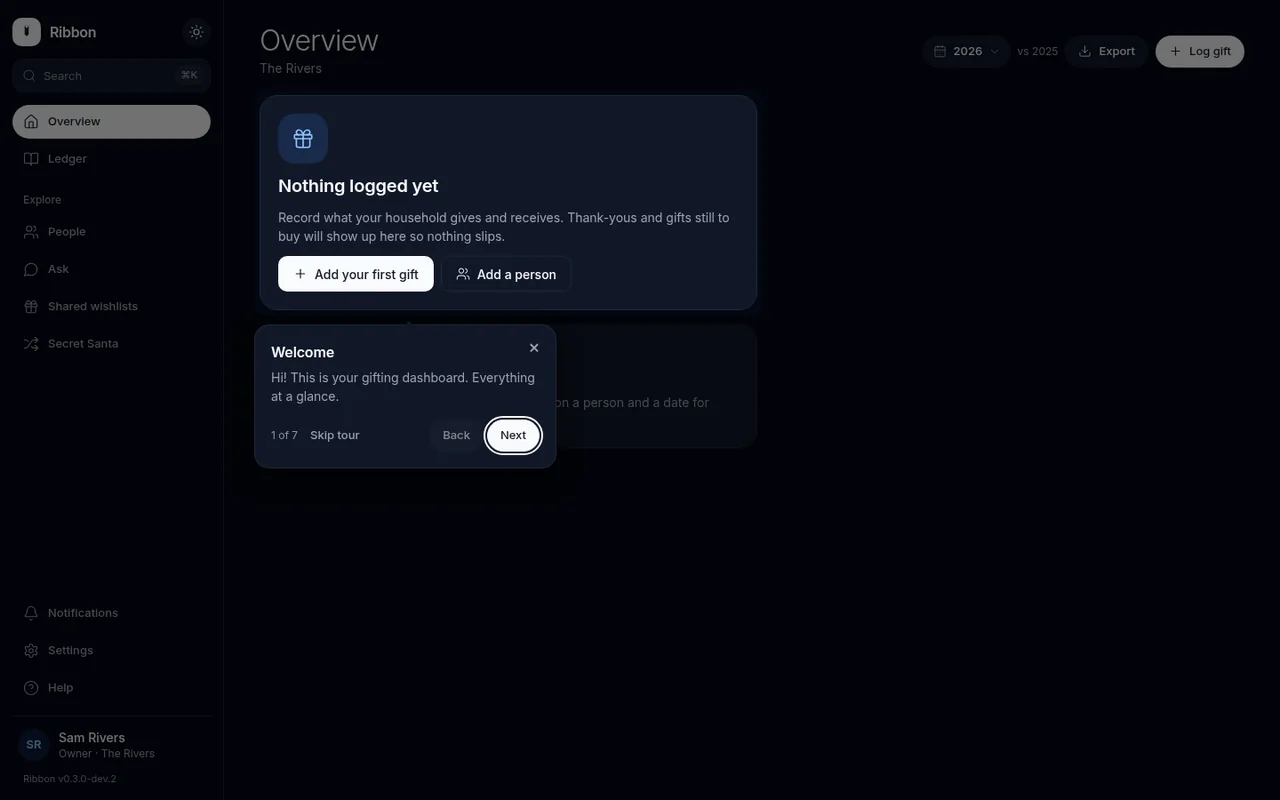
Seven skippable steps (dashboard, add a gift, ledger, people, Ask, theme, settings and backups), built with driver.js (MIT). It opens on a login's first visit, remembers "done" or "skipped" per login (user_prefs.tour_state, saved with POST /api/me/tour), and can be replayed from Settings → Help.
- In development with
SEED_SAMPLE_DATAon, the tour stays off unlessTOUR_IN_DEV=true. TOUR_ALWAYS=trueshows it on every visit until it is finished with Done (for testing, in any mode).
Welcome setup
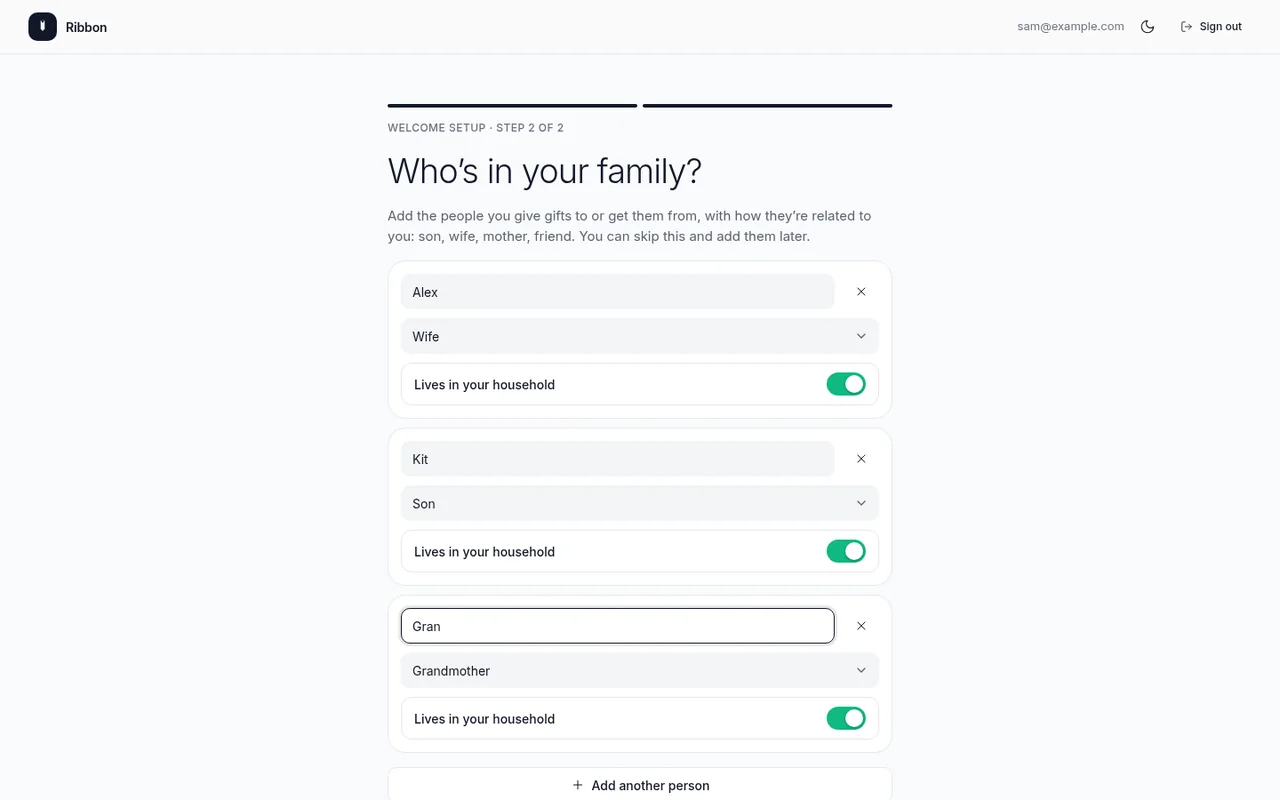
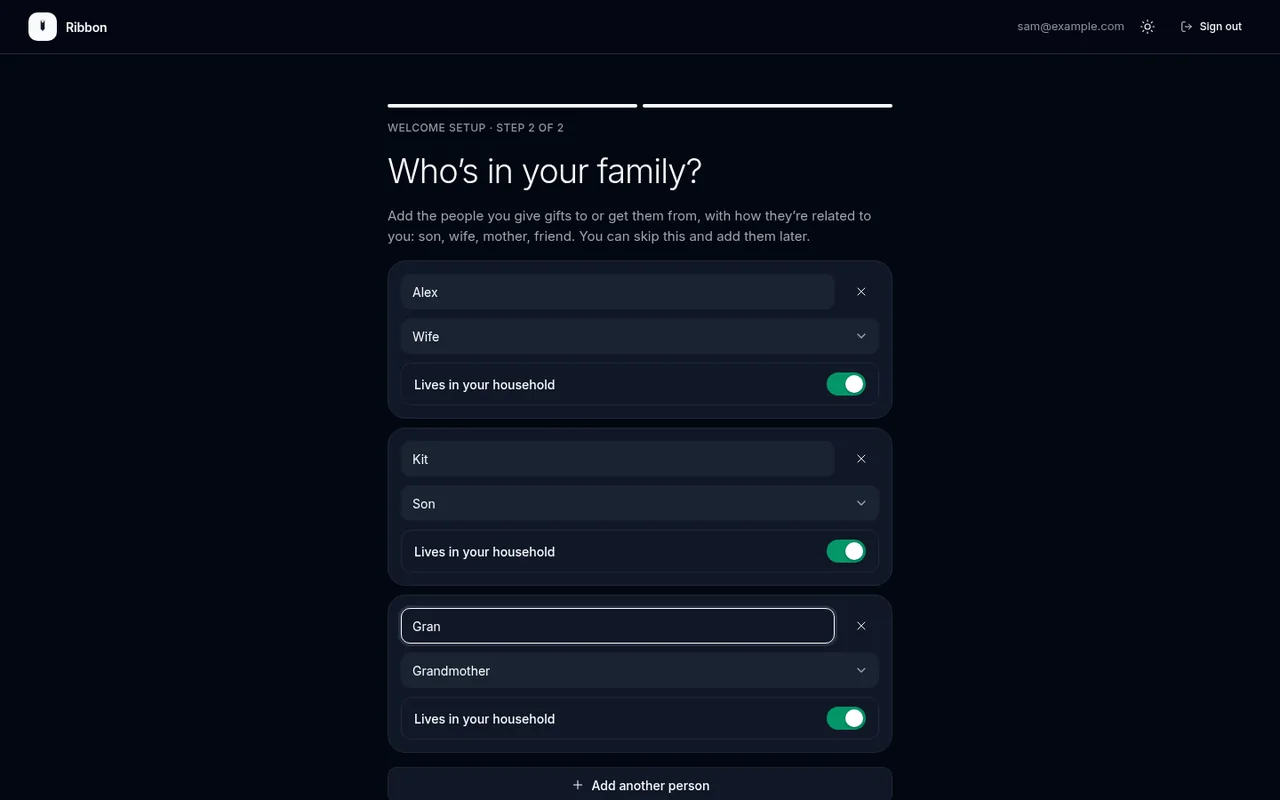
The first visit creates only the owner account (and asks for SETUP_CODE when one is configured). Straight after the first sign-in the owner lands on a full-page Welcome setup: step one names the family or household, step two adds family members with a name and a role (son, wife, grandparent, friend and so on) and whether they are in your household. Finish opens the empty Overview, and the guided tour follows.
- The state lives on the server (
households.setup_complete,setup_step), so an abandoned setup resumes on the same step from any device. - It is enforced server-side: until it is complete the owner's other API calls answer
409 welcome_setup_required(only the welcome endpoints, sign-out and change-password work), and the tour does not auto-open. Members and other owners never see it, and it never appears for a household that already has data or in sample-data development mode. - API:
GET /api/welcome,PUT /api/welcome(save a step),POST /api/welcome/complete. They answer 404 once finished. Scripts can still sendfamilyNameandpeopletoPOST /api/setupto skip the page. - The first owner can only be created from your home network unless
SETUP_CODEis set (orALLOW_PUBLIC_SETUP=true).
Real installs never ship sample data
SEED_SAMPLE_DATA defaults to off in production and in the Docker image. A new database starts with the owner account, then the Welcome setup (see above).