Getting started
This page takes you from nothing to a running Ribbon with your family set up. It takes about ten minutes.
Requirements
- A machine that stays on: a home server, NAS, Raspberry Pi 4 or newer, or a small VPS. Ribbon is light; the image is a small Node server and one SQLite file. Both
linux/amd64andlinux/arm64images are published. - Docker with the Compose plugin (
docker compose versionshould work). Compose 2.24 or newer is needed only for the optional Caddy overlay. - A way to reach it from your phones: your home network is enough to start. For use away from home, or to install it as an app on a phone, you will need HTTPS. See Securing your install.
You do not need a domain, an account anywhere, or an API key to try Ribbon.
Install with Docker Compose
Ribbon is published as ghcr.io/thepizzatech/ribbon. While the project is in development there is no release yet, so you run the dev tag, which is built from the newest main.
mkdir ribbon && cd ribbon
curl -fsSLO https://raw.githubusercontent.com/thepizzatech/ribbon/main/docker-compose.yml
echo "RIBBON_TAG=dev" > .env
docker compose pull
docker compose up -d
Why RIBBON_TAG=dev?
The compose file runs ghcr.io/thepizzatech/ribbon:${RIBBON_TAG:-latest}. The latest tag only exists once there is a release, so for now set RIBBON_TAG=dev in the .env file next to docker-compose.yml. After the first release you can drop the line, or pin a version such as RIBBON_TAG=0.3.0-beta.1.
Ribbon is now listening on port 8080 over plain HTTP. Open http://<your-server-ip>:8080.
- Change the published port with
PORT=9090in.env(the app always listens on 8080 inside the container). - Your data lives in the named volume
ribbon_data(the database is/data/ribbon.db). It survives restarts,docker compose pullanddocker compose down. Onlydocker compose down -vdeletes it. - Every setting is optional and goes in the same
.envfile. See Configuration or copy.env.examplefrom the repository.
Is the server reachable from the internet?
Until the first owner exists, anyone who can open the page could claim it. Set SETUP_CODE in .env before you start, and type it once on the first visit. Without a code, Ribbon only lets the first owner be created from your home network, and says so if you try from anywhere else.
Build from source instead
If you would rather build the image yourself:
git clone https://github.com/thepizzatech/ribbon.git && cd ribbon
docker compose -f docker-compose.yml -f docker-compose.build.yml up -d --build
First run
The first visit is deliberately short.
- Create the owner account. Choose a username and password (and the setup code, if you set one). That is all the first page asks for. This login is the instance admin: the one that manages backups and other households, and that nobody else can demote or remove.
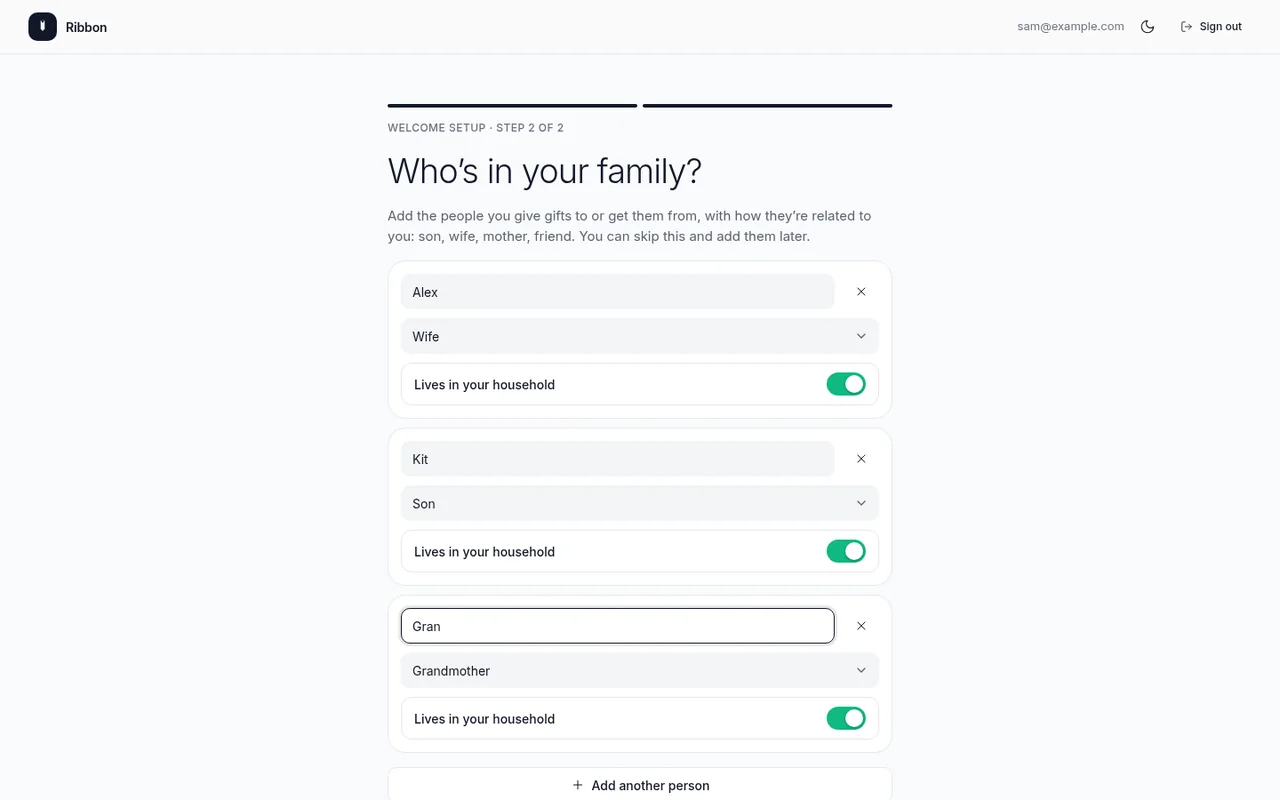
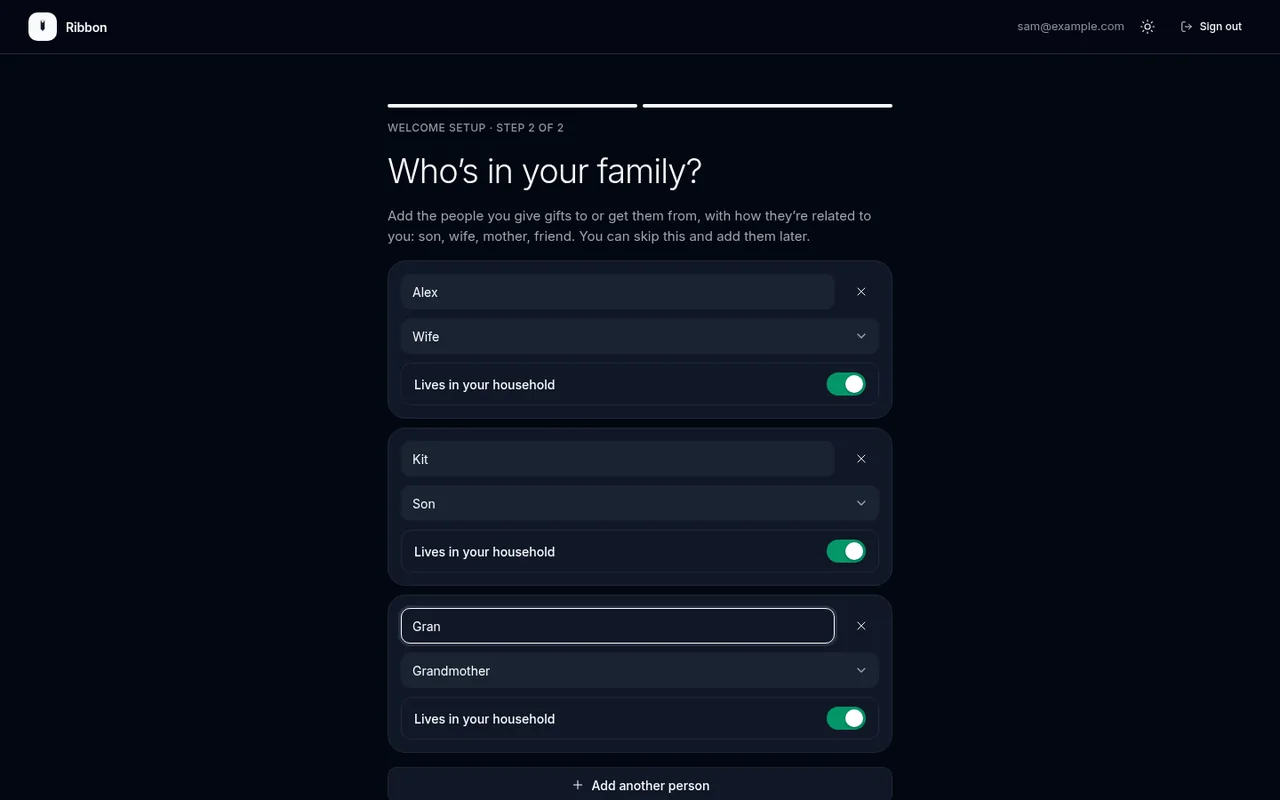
- Welcome setup. Straight after you sign in, a full-page setup asks two things: the name of your family or household, and who is in it (a name and a role such as son, wife, grandparent or friend, and whether they live in your household). You can skip adding people and do it later. The server holds the rest of the app closed until you finish, and if you close the tab halfway it resumes on the same step, from any device.
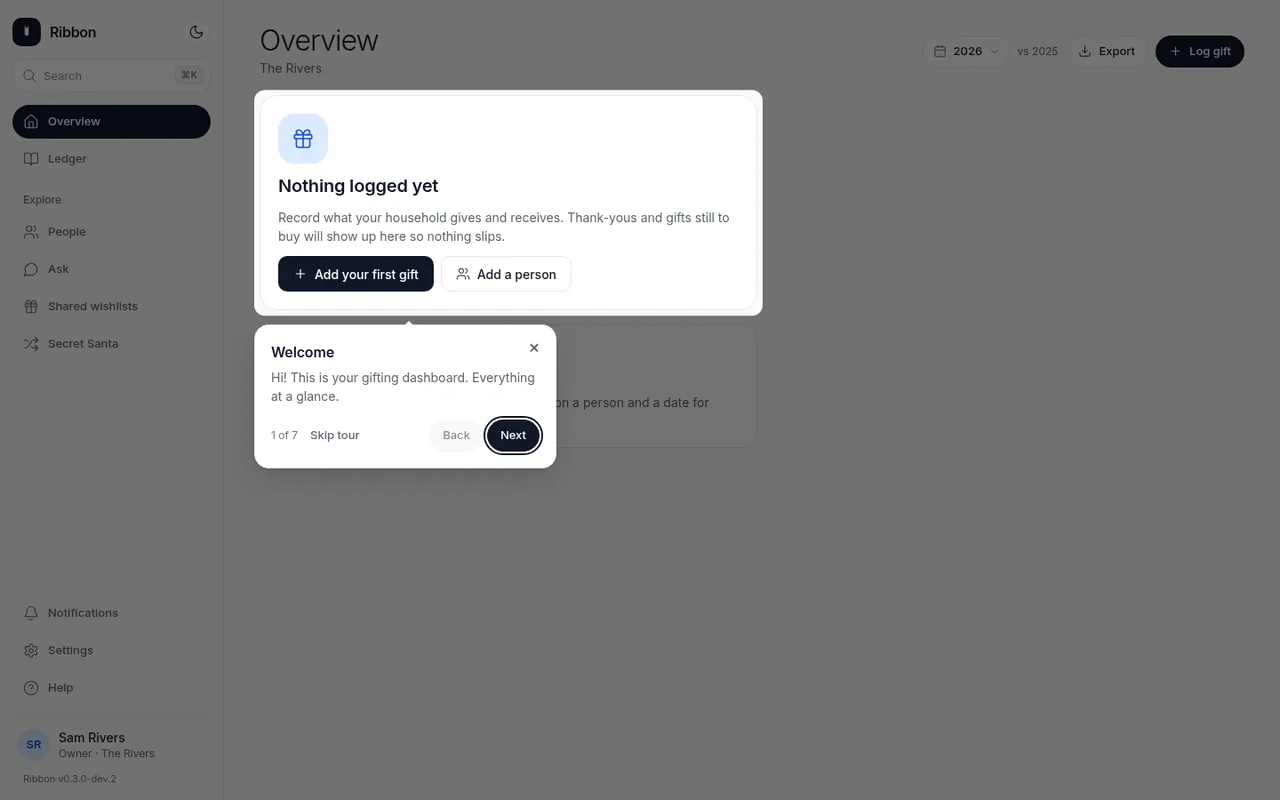
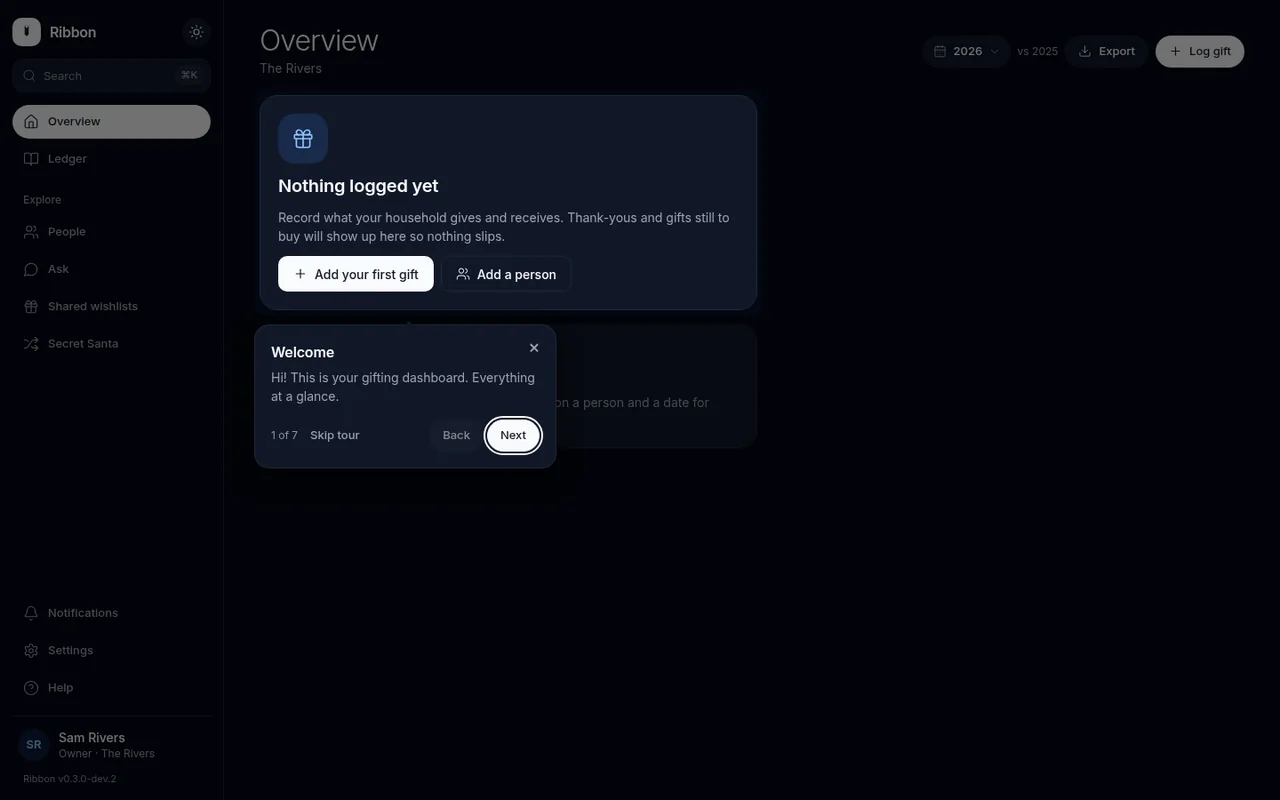
- The tour. Finish opens your empty Overview and starts a seven-step, skippable guided tour. You can replay it later from Settings → Help.
Add the rest of the family
Owners can add other logins under Settings (a username and password each), and set whether each is an owner or a member:
- Owners add and remove logins and set roles.
- Members use the ledger.
Link each login to a person in your household so Ribbon knows whose wishlist is "theirs" (that is what keeps surprises hidden from the person they are for).
Everyone can change their own password (other devices are signed out) and sign out. Passkeys and single sign-on are covered in Securing your install.
Forgot the owner password?
Another owner can add a new login. If you have no other owner, stop the container and ask for help in an issue: there is deliberately no back door.
Put it behind HTTPS
Plain HTTP is fine for trying Ribbon on your home network. Before you reach it from outside, or want to install it as an app on a phone (the install prompt, offline page and passkeys all need a secure context), put an HTTPS reverse proxy in front. The quickest options:
- Caddy overlay (bundled):
SITE_ADDRESS=ribbon.example.com docker compose -f docker-compose.yml -f docker-compose.caddy.yml up -d - Tailscale:
tailscale serve --bg 8080 - Nginx Proxy Manager, Traefik, Cloudflare Tunnel: recipes in HTTPS and reverse proxies.
Then set PUBLIC_URL=https://ribbon.example.com in .env and run docker compose up -d again.
Updating
Your data volume is kept and migrated in place. Details, including what to do before a big update, are in Upgrading.
Backups
Ribbon snapshots the database every night into /data/backups and keeps the newest 14. You can also take one on demand and download it from Settings → Data. For what to copy off the machine, and how to restore, see Backups & restore.
Developing instead?
If you want to hack on Ribbon rather than run it, see Contributing.